Products and categories
Products, variants, categories, images and descriptions — in the buyer’s language where you have translated them in Odoo.
Odoo integration
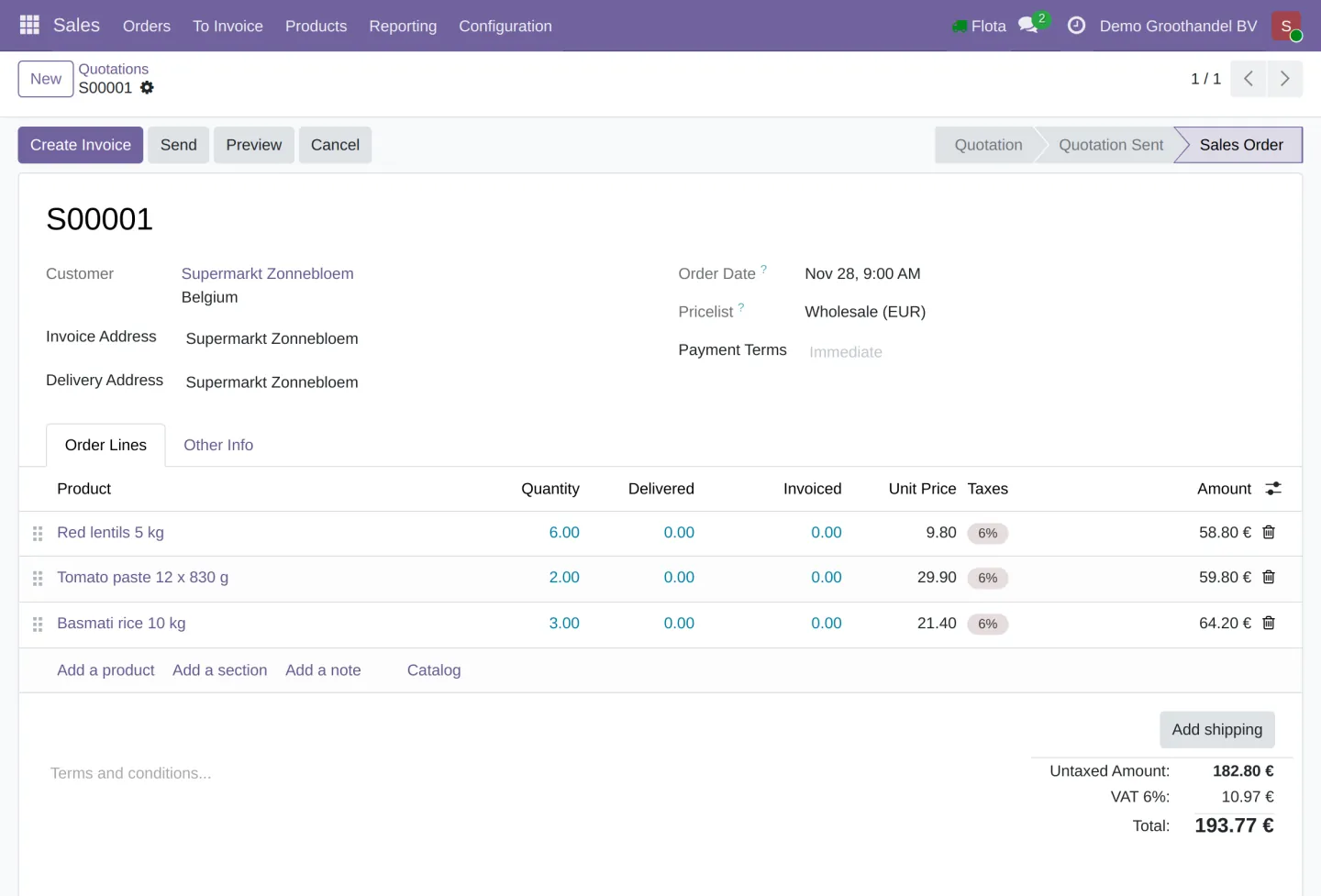
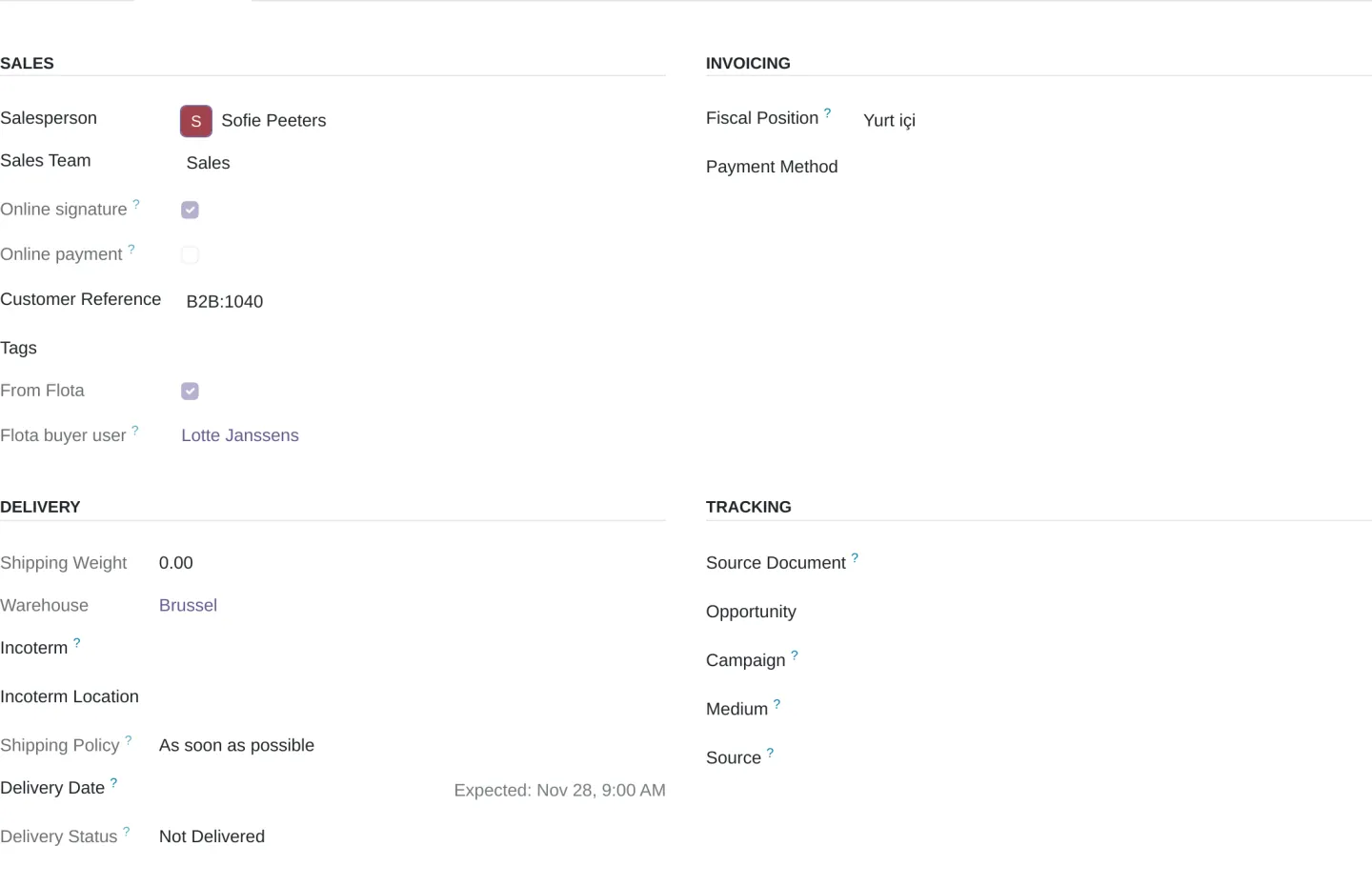
The Flota module is installed in your own Odoo. It reads your catalogue, prices, taxes and stock, and creates standard sales orders. You manage everything from a Flota menu inside Odoo.
There is no separate catalogue to maintain. The app shows what is in Odoo when the buyer opens it.
Products, variants, categories, images and descriptions — in the buyer’s language where you have translated them in Odoo.
Each buyer company sees the prices of the price list assigned to it in Odoo, including your discounts and quantity rules.
Prices in the app include VAT. Odoo calculates the VAT per product and applies the buyer’s fiscal position, so an intra-EU buyer sees the right amount.
You choose which warehouses sell to B2B customers. Available stock is what is on hand minus what is already reserved for other orders.
You choose which of your Odoo shipping methods buyers can select in the app.
Favourites are the same list as the wishlist of your Odoo webshop, so buyers see the same products in the app and on the web.
Buyers see their previous orders with their status and can order the same products again.
Invoices with their PDF, the open balance and the company profile come straight from Odoo accounting.
Flota adds no separate order flow. Your team keeps working in Sales, Inventory and Invoicing as usual.
Flota menu in Odoo
Everything for the app in one menu, in English, Dutch, French or Turkish.

Only companies you invite can order from you on Flota.
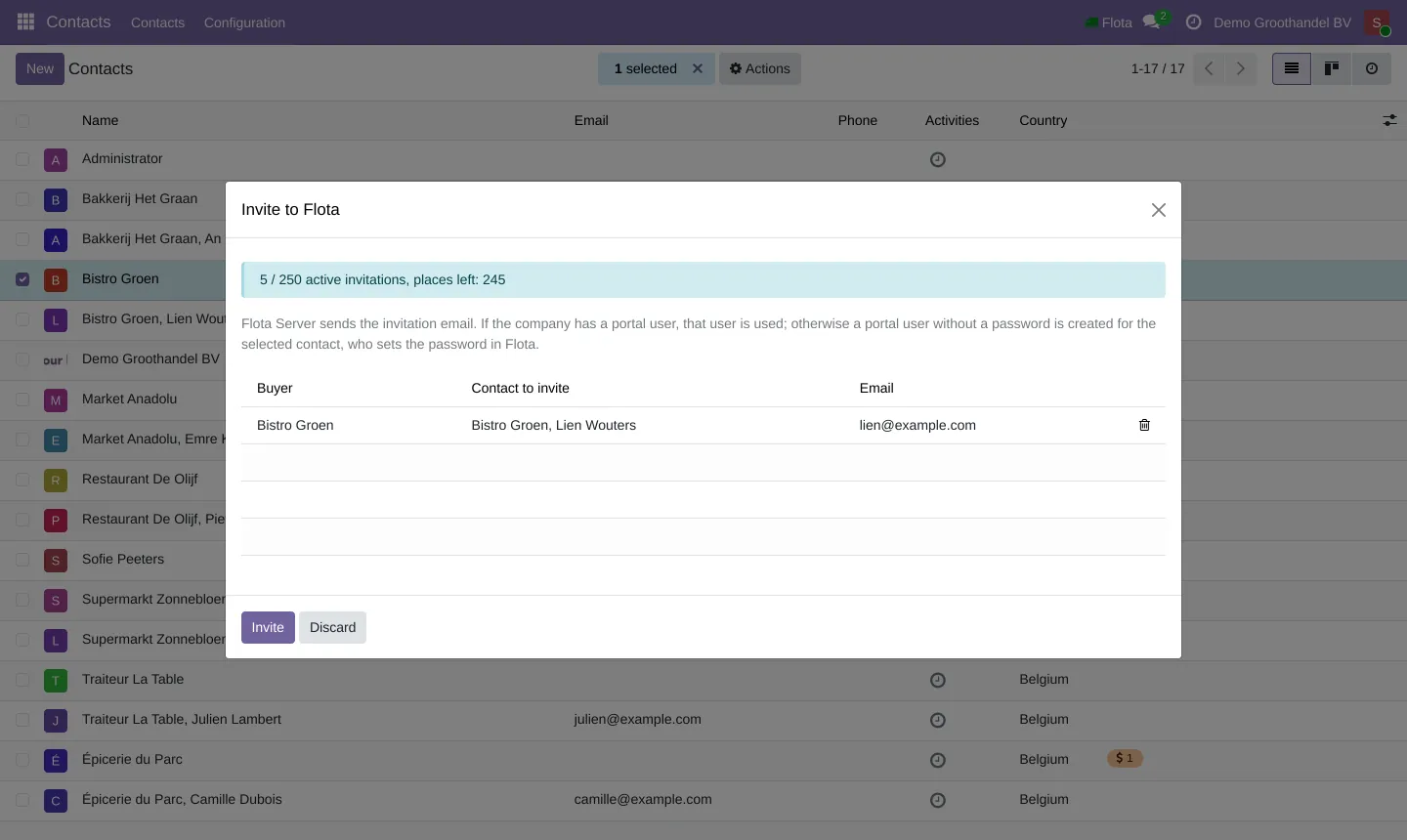
Select customers in Odoo and choose “Invite to Flota”. The invitation is sent to the contact’s e-mail address.
The buyer creates a Flota account with the e-mail address the invitation was sent to. Other suppliers on Flota are added to the same account.
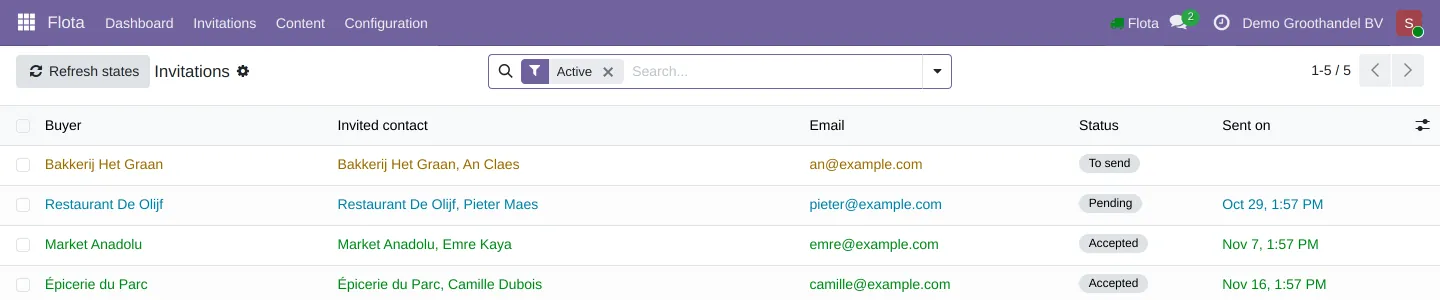
In the Invitations screen you see which invitations are pending, accepted or cancelled, and you can cancel one.
The limit counts companies with a pending or accepted invitation. A company can have several users at no extra cost.
Your data stays in your Odoo. Flota is built so that each buyer only reaches what belongs to them.
Every request is limited to the buyer company first: its prices, orders, invoices and balance — never another customer’s.
The app connects through a service account that can only use the Flota functions, not the rest of your Odoo.
Requests between your Odoo and the Flota server are signed and checked, including who the buyer user is.
The module adds its own menu and fields. It does not change your other modules or your existing records.
We guide you through the set-up during the onboarding.
Add the Flota module to your Odoo.
A dedicated Odoo user with only the Flota rights.
Enter your subscription code in Flota settings and connect. Your package is then read from the Flota server.
Select the B2B warehouses and the shipping methods buyers can use.
Check that each customer has a price list, then send the invitations.
What your Odoo needs for Flota.
Odoo Online (the SaaS version) does not allow custom modules and is therefore not supported in the first release. Ask us about other Odoo versions.
We show you the app and the Odoo module, and answer your questions about packages and getting started.